Thursday, 28 December 2017

Difference between 32-Bit and 64-Bit Processors

What is the Difference between 32-Bit and 64-Bit Processors?

There are many things to consider when buying a new Computer. We look for RAM size, Processor, CPU, GPU, Hard Disk and display etc. But when it comes to select a Processor’s category, we prefer 64-bit Processor. In fact, Most people want 64-bit Processor PC without even knowing what does it mean to have 64-bit Processor and What is the Difference between 32-Bit and 64-Bit Processors?.
It’s good to have knowledge of many terms which are used daily but people don’t give much attention. In this article, let’s discuss 32-Bit and 64-Bit Processors and what does it mean for your PC.

Difference between 32-Bit and 64-Bit Processors

Whenever you buy an operating system, a software or a game, you probably see 32-bit and 64-bit options available. If you’re a Windows user, you must have noticed that you have two Program Files folders — one simply “Program Files” and the other labeled “Program Files (x86).”  This “Program Files” folder is used for storing the DLL files of 64-bit applications only. The x86 folder is used for storing the DLL files of 32-bit applications.

To install a 64-bit version of Windows, you need a CPU that’s capable of running a 64-bit version of Windows. The benefits of using a 64-bit operating system are most apparent when you have a large amount of random access memory (RAM) installed on your computer, typically 4 GB of RAM or more.

In such cases, because a 64-bit operating system can handle large amounts of memory more efficiently than a 32-bit operating system, a 64-bit system can be more responsive when running several programs at the same time and switch between them frequently.
A computer with a 64-bit processor can have a 64-bit or 32-bit version of an operating system installed. However, with a 32-bit operating system, the 64-bit processor would not run at its full capability.

How can 64-bit Processor handle more RAM?

The computer system only supports binary counting. There is either 0 or 1. Each one is a considered a “bit.” That means for 1-bit computing, you get two possible values; 2-bit means four values; then at 3 bits, you double that to eight (2³).
Keep going exponentially and you eventually get 32-bit (2 to the 32nd power) worth 4,294,967,296 and 64-bit (or 2 to the 64th power) is worth 18,446,744,073,709,551,616 values.
That’s a lot of bits, and the numbers show just how much more powerful a chip that supports higher bit computing can be. It’s a lot more than double. So It’s pretty obvious that 64-bit processor is capable of doing more computing than 32-bit.
These days, you are most likely already running 64-bit chips with 64-bit operating systems, which in turn run 64-bit apps (for mobile) or programs (on the desktop, to settle on some nomenclature). But not always. Windows 7, 8, 8.1, and 10 all came in 32-bit or 64-bit versions, for example.
15 Important Run Commands Every Windows User Should Know

15 Important Run Commands Every Windows User Should Know


There are several ways to efficiently access the files, folders, and programs in Windows operating system. We can create shortcuts, pin programs to the taskbar, Start menu shortcuts etc. but we can’t do it for all programs in many cases. However, the Windows Run Command box is one of the most efficient ways of accessing system programs, folders, and settings.
In this article, I am going to share 15 most important Run commands for Windows users. These commands can make it easier to manage a lot of tasks.
How to open Windows Run command box?
You need to press Win+R (Hold Windows button then Press R)

Important Run Commands Every Windows User Should Know

1. %temp%
This is the fastest way to clear the temporary files from your computer. It can save a lot of space which was being wasted by temporary files.
2. cmd 
This command will open the windows DOS command prompt. Windows command prompt is very useful for performing many tasks which are not possible using graphical user interface.
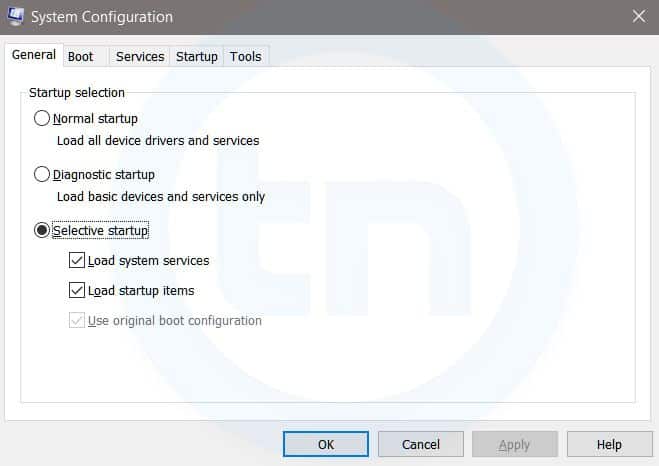
3. MSConfig
Windows Run Command - MSconfig-compressed
Windows System Configuration
This command will open Windows System Configuration where you can edit different things like the boot options, startup options, services, etc.
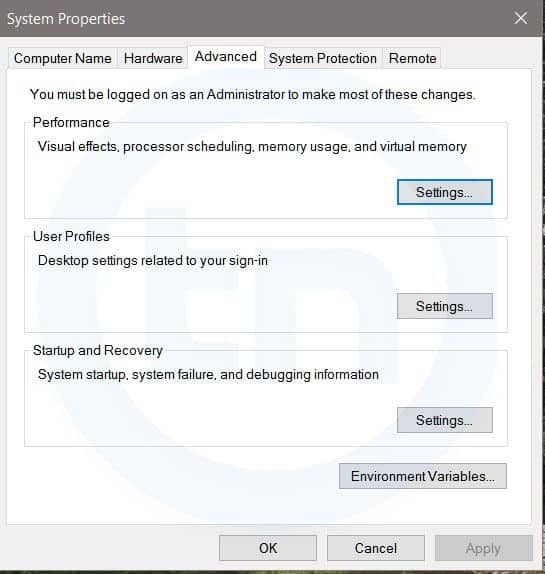
4. sysdm.cpl
Windows Run Command - sysdm cpl-compressed
System Properties window
This command will open the System Properties window, Where you can change the system protection and performance related many settings
5. Powershell
Powershell is very similar the command prompt. Just type this command in the Run dialog box, and you will have your PowerShell opened without administrator privileges.

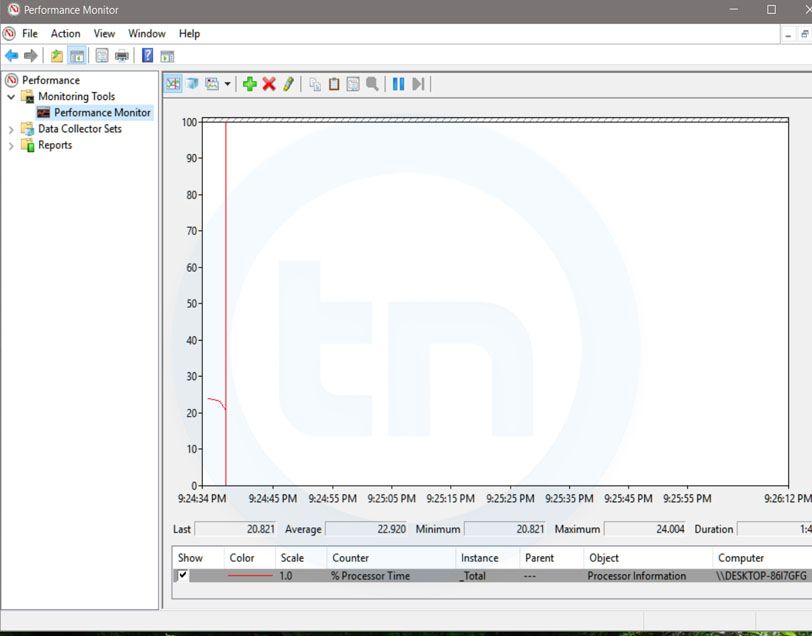
6. perfmon.msc 

Windows Run Command - perfmon msc-compressed
This command can be used to monitor the performance of your computer. There are plenty of options for monitoring the system performance
7. regedit
Regedit Run command is used to open the Windows Registry. It is a hierarchical database that hosts all the configurations and settings of Windows operating system, it’s users and the installed software.
8. \ (Backslash)
This is one of the lesser known Run commands. Just enter the backslash into the Run dialog box and it will open up the C drive. It is one of the quickest ways to access the C drive.
9. . (Dot)
This is yet another lesser known Run command. When executed, it opens the current user’s home folder which hosts all the other local folders like the Downloads, Documents, Desktop, Pictures, etc.
10. .. (Double Dots)
When you execute these two dots in the Run dialog box, it will open up the Users folder which is located directly on the C drive.
11. Control
This command will open the control panel. Control panel is used for managing all the system settings and programs
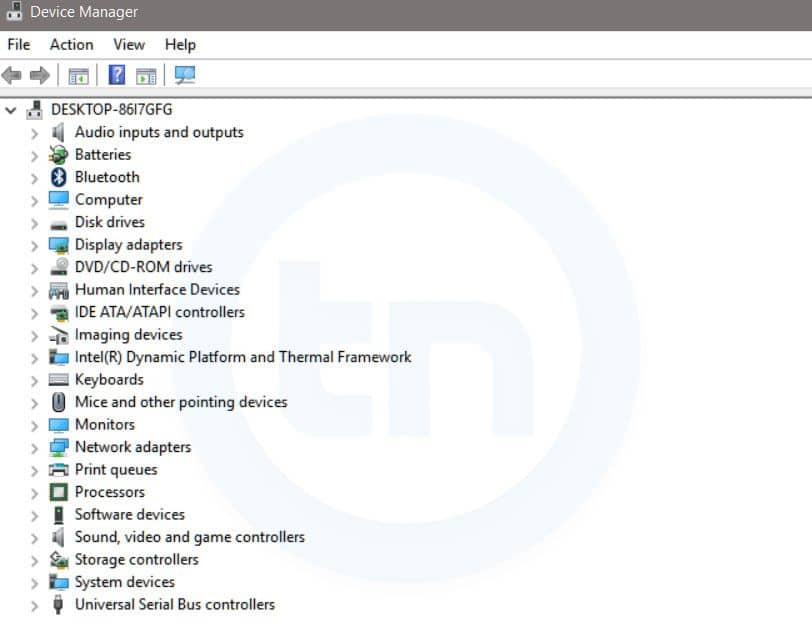
12. hdwwiz.cpl
Windows Run Command - hdwwiz-
Windows Device Manager
This command is used to open the Device Manager in Windows. You can manage all the device connected internally or externally to your PC.
13. Notepad
The quickest way to open notepad in Windows. Just type this command in Run Box and hit enter.
14. osk
This command will open On-Screen Keyboard on your display monitor. You can easily touch and type or use your mouse for typing.

15. taskmgr 
This command will open task manager where you can manage all the processes and programs running on Windows Operating system.

How To Bypass Android Pattern Lock With/Without Root

METHOD I Solution With Recovery (Cwm, Twrp, Xrec,Etc…) Installed: INSTRUCTIONS: Download this zip Pattern Password Disable (Download...